

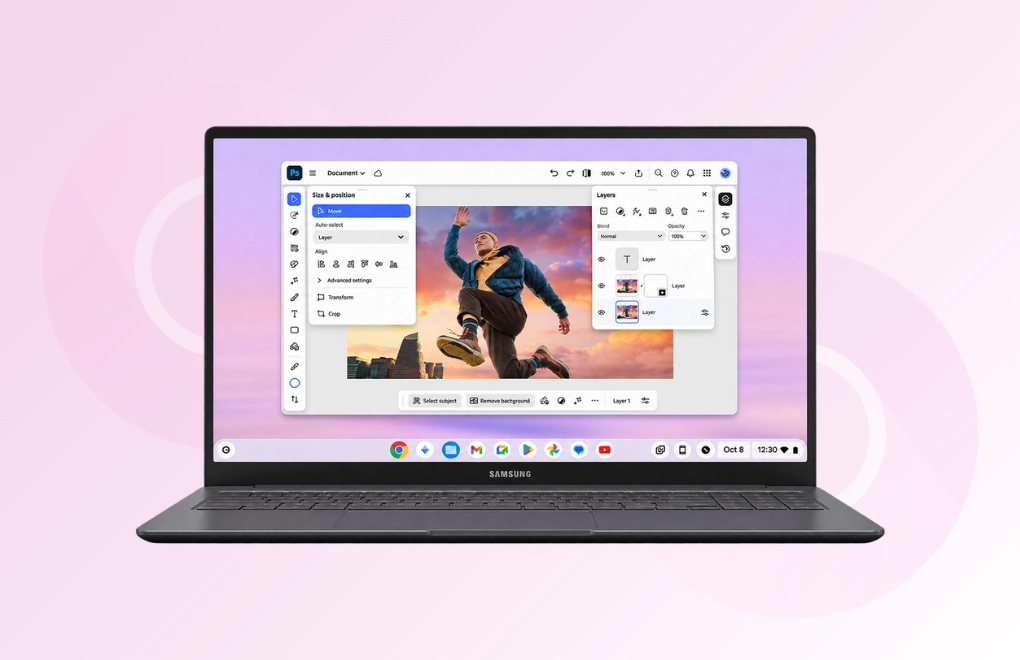
The best drawing software for Chromebook depends on how your device runs apps and what you want to make. A browser tool is the easiest start, an Android app gives you more brushes, and a few pro programs now run on ChromeOS too. This guide covers ten tools, sorted by how they run, with current prices, system needs, and notes for school devices. Each tool also says who should skip it.
Chrome Canvas, Kleki and Sketchbook are among the best starting points for Chromebook users. They offer different levels of drawing features, so you can choose one based on how much control you need.
A Chromebook can run drawing tools in three ways: in the browser, as an Android app, or as a Linux program. Browser tools need nothing installed. Android apps come from the Google Play Store, but Google says the Play Store works on only some Chromebooks, and a school or work device may block it. Linux programs need Linux switched on in Settings, and Google explains that setup as well.
The ten tools below follow the same order: browser tools first, then Android apps, then pro-level programs. That order also matches how most people grow, from quick sketches to detailed projects.
Open Settings, then Apps, and look for Google Play preferences. If that option is missing, your Chromebook does not run Android apps, so stay with the browser tools. Next, check your memory. Clip Studio Paint asks for at least 4GB of RAM on a Chromebook, and Infinite Painter keeps your open project in memory, so bigger canvases need more of it.
Browser tools suit beginners, students, and anyone on a locked device. They are quick to open and easy to learn. The trade-off is fewer features than a full app, and some need an internet connection.

Chrome Canvas is Google’s own drawing app for ChromeOS. You can open it from the Launcher, or go to canvas.apps.chrome in Chrome. Start with a blank page or an image, which makes it handy for sketching an idea or marking up a picture.
The app keeps things simple on purpose. Google’s help page explains that drawings save on your Chromebook if you are not signed in, and they sync across devices if you sign in with a Google Account. School and work devices add a catch. Google notes that a Workspace account on a managed Chromebook may not be able to sign in or sync, and administrators can switch the app on or off.
Who should skip it: Anyone who wants layers or custom brushes. Chrome Canvas is built for light sketching, so look at Kleki or an Android app for more control.

Kleki is a free painting app that works in your browser. Its listings describe it as open source and ad-free. It offers brushes, layers, a paint bucket, a text tool, and image import. Its changelog lists a limit of 16 layers, which is plenty for a sketch, line art, and color on separate layers.
Saving is where Kleki asks for a little care. Kleki’s help page says you can save as a PNG, as a PSD that keeps your layers, or as separate PNGs for each layer. It also warns that browser storage can be cleared, so it does not replace saving a copy to your Chromebook. Kleki reads pen pressure through the browser, so how well it responds depends on your Chromebook and pen.
Who should skip it: People who want advanced painting brushes or an app that saves for them. If you want more brushes, try an Android app next.
Sumo Paint mixes painting with photo editing in one browser workspace. Reviews describe a large brush set, layers, filters, and text tools. That mix helps when a school project needs both a drawing and an edited photo.
The free plan has limits. A SourceForge summary says many advanced tools sit behind Pro. Third-party listings show Pro at about $4 a month with a 7-day trial, plus a cheaper plan for students, but prices differ between sites, so check Sumo Paint’s own page before you pay.
Who should skip it: Anyone who wants a fully free tool. Kleki gives you layers and PSD export without a paid tier.
Pixilart is a pixel art editor with a community built around it. A 2026 review listing says it includes layers, an animation timeline, onion skinning (a faint view of nearby frames), and sprite-sheet export. Those tools make it a good fit for game sprites, icons, and small animated loops.
It also has a social side, with galleries and challenges. That is fun for hobbyists, but a school may have rules about community sites, so check before you sign up. Listings report a paid tier from about $4.99 a month, though that figure comes from third parties.
Who should skip it: People who want painting or sketching. Pixilart is made for pixels, not brush strokes.
Photopea looks and feels like Photoshop, and it runs in your browser. It opens PSD files, works without an account, and supports brushes, layers, and masks. That makes it useful when you want to fix an image, finish artwork you started elsewhere, or open a file from a friend.
The free version shows ads unless you pay for Premium. Photopea is also an image editor first and a drawing tool second, so it feels busier than a sketch pad.
Who should skip it: Anyone who only wants to doodle. Chrome Canvas or Kleki feels lighter for that.
Move to an Android app when browser tools start to feel tight. These apps give you better brushes and smoother pen input, but they depend on Google Play. If your Chromebook does not support it, go back to the browser section.

Sketchbook is a long-running sketching app with a clean layout, brushes, layers, and guides for perspective and symmetry. PCWorld’s 2026 list of Chromebook apps calls it surprisingly powerful for a free app, and also notes a steep learning curve for first-timers.
The pen question matters here. Sketchbook’s help pages say most Chromebooks and ChromeOS tablets can install it from Google Play, but performance varies and not every pen works with pressure sensitivity. Its pressure guide says Android officially supports pressure with the Samsung S Pen. An older requirements page adds that many Chromebooks lack the drivers for pressure-sensitive pens, and pen-enabled ChromeOS tablets are more likely to work. Some users on Autodesk’s forum have also reported drawing lag on Chromebooks, so test your model.
Who should skip it: People who need dependable pen pressure on a regular laptop-style Chromebook. Test the app before you rely on it for pressure-based shading.
Concepts gives you an infinite canvas, so you never run out of pages. Its website lists a Chromebook download and says the app is built for stylus devices, including any Chromebook with a pen. That makes it a natural pick for sketches, floor plans, and visual notes.
The free plan covers the basics, and the company says about 93% of its users pay nothing. More tools come from a one-time Essentials pack or a Pro subscription, with a 7-day trial and no charge until it ends. Prices vary by region, so read the Play Store listing before you buy.
Who should skip it: Anyone who wants a full comic-making toolset or heavy painting features. Clip Studio Paint and Krita cover that better.

Infinite Painter is a painting app with realistic brushes and blending. According to Android’s developer site, its makers added about 30 keyboard shortcuts, support for mouse, touch, and stylus input, and resizable windows for ChromeOS. That work shows how comfortable it feels on a laptop-style screen.
Infinite Studio’s docs explain the free plan clearly. It has no ads and works as a full painting app, but the canvas is limited to your screen’s resolution, and the Play Store listing says the free version allows 3 layers. Pro adds larger canvases, more layers, masks, and filters, and the docs describe it as a one-time purchase with no monthly fee. A one-week trial of Pro starts after you first install the app.
Memory matters too. The docs say the app keeps your project in RAM, so the largest canvas and the number of layers depend on your Chromebook.
Who should skip it: People who want every tool free from day one. Krita is the better match for that.
These two programs are for people who already know the basics, or who want room to grow. They ask more from your Chromebook, so check the system needs first.
Krita is a free painting program with custom brushes, layers, drawing assistants, and animation tools. It is the strongest free option here for detailed painting. Its Chromebook status is worth reading closely, because older lists get it wrong.
Krita’s own 2026 release posts say it considers Krita on ChromeOS ready for production, while the Android version is still beta and meant for tablets. Its Krita 6 announcement said that version was not yet available for Android or ChromeOS, so Chromebook users get the 5.3 series for now. The Play Store version is the full desktop interface, not a touch layout, so a keyboard and mouse or trackpad help.
Install it on a Chromebook:
Posts on Krita’s user forum have said a stylus can act like a plain pointer inside Linux apps, while Android apps handle it better. Those reports may be old, so test both versions on your own model.
Who should skip it: Anyone who only wants quick doodles. Krita is a full painting program, and its menus take time to learn.

Clip Studio Paint is made for line art, coloring, and comic pages, and it has an official Chromebook version. Its December 2025 update dropped Android 12 support, so the Chromebook version now needs Android OS 13 or later. Clip Studio’s notice lists Android 13 through 16. The company’s Chromebook specs call for at least 4GB of memory, with 8GB or more recommended.
It is not free. The PRO plan costs $4.49 a month, or $26.99 a year, for one device, according to Clip Studio’s plan list. EX adds comic and animation tools and costs more. Higher-priced plans cover more devices, so you can add a PC later, and your work can sync through its cloud. Google’s Chromebook Perks page has listed Clip Studio offers in the past, so look for a current free trial before you pay.
Who should skip it: Students who need basic drawing tools only, and anyone who wants to avoid a subscription.

School-issued Chromebooks often block installs, Linux, and some websites. In that case, browser tools are the most practical choice, and the order matters.
Ask your school’s IT team before you try a workaround for any blocked site. Also ask how you should save and submit your artwork, since some teachers want a PNG or a link. Still choosing hardware? Find out whether a Chromebook or a laptop is better for school.
| Tool | Platform | Cost | Best for |
|---|---|---|---|
| Chrome Canvas | Web app | Free | Quick sketches and notes |
| Kleki | Web app | Free | Free online painting with layers |
| Sumo Paint | Web app | Free plan, paid Pro | Drawing plus photo editing |
| Pixilart | Web app | Free plan, paid upgrades | Pixel art and animation |
| Photopea | Web app | Free with ads, paid Premium | Layered edits and PSD files |
| Sketchbook | Android app | Free | Learning digital illustration |
| Concepts | Android app | Free plan, paid options | Stylus sketches and plans |
| Infinite Painter | Android app | Free, one-time Pro | Natural-looking painting |
| Krita | Android app or Linux | Free | Advanced painting |
| Clip Studio Paint | Android app | Paid plans from $4.49 a month | Comics and line art |

You do not need a drawing tablet to start. A mouse, trackpad, or touchscreen works for basic drawing, and a stylus makes freehand work easier. Pen input helps most with smooth lines, shading, and fine detail.
Pressure sensitivity is where things get tricky. It only works when your Chromebook, your pen, and your app all support it. A basic touchscreen stylus may let you draw but not change line width as you press harder. Sketchbook says so openly in its help pages, while Concepts and Infinite Painter both describe themselves as made with stylus users in mind. Check your Chromebook’s specs for pen support, and check a pen’s ChromeOS compatibility before you buy one.
If you want a device built around a pen, our tablets section is a good place to compare options.
Four questions narrow the choice quickly.
For beginners, the safest start is Chrome Canvas or Kleki. You can learn the controls there and move up later.
Some lists still name Adobe Illustrator Draw and Photoshop Sketch. Adobe removed both from the Android and iOS stores in July 2021 and ended support in January 2022. Fresco replaced them, but Adobe’s help pages say it is not on Android, so it is not an option for most Chromebooks. Check Adobe’s site in case that has changed.
We also left out ibis Paint X and MediBang Paint. Both are popular on Android, but I could not confirm official Chromebook support for either, so check the Play Store listing before you try them. A list that still names discontinued apps may be out of date in other ways, too.
Start with Chrome Canvas or Kleki if you want to draw without installing anything. Move to Sketchbook or Concepts when you want better brushes and pen input, and choose Infinite Painter for natural painting. Krita is the pick for free advanced work, and Clip Studio Paint is the pick for comics. Install one tool, draw with it for a week, and judge it by how your pen feels. If you outgrow a Chromebook, our guide to the best MacBook for artists shows the next step up.
Want a more powerful touch setup? See how the touchscreen MacBook Pro compares with the iPad Pro.

TheTweaks Editorial Team researches, writes and fact-checks every article on this site. Read how we work, who runs TheTweaks and how to report an error on our Editorial Team page.
AI RFP software reads a request for proposal, finds matching answers in your past work, and drafts a response for a person to review. It…





Be respectful and constructive. Have a question or feedback? We’d love to hear from you. Contact us at contact@thetweaks.com