

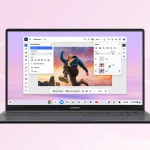


A laptop that costs less today can become an expensive mistake by the time a student reaches their second year of college. The problem isn’t always slow performance or poor battery life. Sometimes, the device simply cannot run the software needed for an important assignment.
That’s the decision behind the Chromebook vs laptop debate. Both can handle everyday schoolwork, but they aren’t designed for the same kind of student. One prioritizes simplicity, quick access to online tools, and affordability. The other offers broader software compatibility, more hardware choices, and greater flexibility for demanding coursework.
The right choice depends less on which operating system is better and more on what a student needs to accomplish, how much they can spend, and how long they expect the computer to last. Here’s how to make that decision before spending your education budget.
A Chromebook is a laptop that runs Google’s ChromeOS, a light, browser-first system built around web and Android apps. It’s affordable, quick to start, and easy to maintain, which suits everyday schoolwork.
A traditional laptop, usually running Windows or macOS, can install and run full desktop software. It costs more and needs more upkeep, but it handles specialized coursework, creative work, and gaming.
Technically, a Chromebook is a laptop too. When people compare the two, they usually mean a Chromebook against a traditional laptop running Windows, or macOS on a MacBook. On a desk, the hardware can look almost identical. The difference lives in how each machine expects to be used.
A Chromebook starts from the idea that most schoolwork already happens online, so the computer can stay light, quick, and cheap. A traditional laptop starts from the opposite idea: it should run whatever software the user throws at it, even if that costs more and asks for more upkeep. Neither philosophy is wrong. They simply suit different students.
Price follows the philosophy. Chromebooks mostly fall between $250 and $800, with Chromebook Plus models falling between $400 to $2000+. MacBooks generally cost more still, which puts them outside many school budgets.
The categories also blur at the edges. A good Chromebook can feel faster than a cheap Windows laptop, and a bargain Windows machine can feel slower than both. That’s why comparing labels gets you nowhere, and comparing what each machine does for a specific student gets you somewhere useful.
A Chromebook is built around a simple workflow. Students can open Google Docs, attend Google Meet classes, research through Chrome, create presentations, and save assignments to Google Drive. Everything lives close to the browser, which is why a Chromebook feels so uncomplicated on day one. There’s no installer to run, no driver to update, and no pile of background programs competing for memory.
Windows takes a different approach. It supports browser-based tools as well as full desktop applications, including Microsoft Office, Adobe software, programming environments, engineering tools, and specialist educational programs. That flexibility is the whole point of a Windows machine, and it’s also why it asks for a little more maintenance.
Students often ask Chromebook vs Windows, which is better, expecting a winner. In practice the better machine is whichever one runs the software your courses require. For some students that’s a browser and nothing else. For others it’s a program that exists only on Windows.
| Feature | Chromebook | Windows laptop |
|---|---|---|
| Operating system | ChromeOS | Windows 11 (on current models) |
| Main workflow | Web and Android apps | Web and desktop applications |
| Microsoft Office | Web and supported app options | Desktop Office and web versions |
| File storage | Cloud-focused with local storage | Local storage and cloud services |
| Gaming | Limited selection | Wider PC game compatibility |
| Programming | Web-based tools and Linux environment | Broad development software support |
| Offline work | Supported with compatible apps | Extensive offline software support |
| Hardware upgrades | Usually limited | Depends on the model |
A common misconception is that a Chromebook cannot work without an internet connection. That’s not entirely true. Google Docs, Sheets, and Slides support offline work when configured beforehand, and students can access compatible downloaded files.
However, web-based applications that depend on a live connection won’t function normally without one. If your student studies on a long commute or in a library with unreliable Wi-Fi, set up offline access before the semester starts, not the night before a deadline.
After switching between a mid-range Chromebook Plus and a similarly priced Windows laptop for several weeks, the trade-offs became easy to feel. Neither machine is bad. Each one asks for a different compromise.
The pattern held across everything I tried. The Chromebook asked less of me every day, and the Windows laptop could do more when I needed it to.

Specifications are useful only when they translate into a better study experience. Paying extra for a powerful processor makes little sense if the student only writes documents, but saving money on RAM can cause problems if they regularly work with multiple applications. Below are few factors worth considering:
Start with the applications required by the student’s courses. Check whether the university uses Microsoft Office desktop applications, Google Workspace, Adobe Creative Cloud, MATLAB, SPSS, AutoCAD, Visual Studio, or other specialist programs.
Don’t assume that a browser version offers every feature available in the desktop version. For example, Microsoft Excel on the web handles everyday spreadsheets well, but some advanced functions, add-ins, macros, and data workflows may require the Windows desktop application.
Buying advice: Make a list of five applications the student expects to use regularly. Check their official system requirements before choosing an operating system.
A Chromebook with a modest processor can feel responsive during everyday browsing and document editing because ChromeOS has relatively light system requirements. Windows needs enough memory and processing power to handle the operating system, background processes, browser tabs, and desktop applications.
For a general student laptop, these are reasonable targets:
| Component | Basic student use | Heavier student use |
|---|---|---|
| Processor | Recent entry-level or midrange chip | Modern Core i5, Ryzen 5 or equivalent |
| RAM | 8GB preferred | 16GB or more |
| Storage | 64–128GB Chromebook; 256GB Windows laptop | 512GB–1TB SSD |
| Display | Full HD (1920 × 1080) | Full HD or higher, based on workload |
These are buying guidelines, not universal minimum requirements. Actual performance depends on the processor generation, memory type, storage speed, and application workload.
Battery life can make a noticeable difference for students who move between classrooms, libraries, and study spaces. A Chromebook may offer excellent endurance during light browsing and document editing. However, manufacturers’ advertised figures don’t always reflect real usage.
Video meetings, high screen brightness, background downloads, and numerous open tabs can reduce battery life on either platform. Look for independent battery tests rather than relying entirely on the manufacturer’s advertised number.
Students often carry their computers alongside textbooks, chargers, notebooks, and other accessories. A 13- or 14-inch laptop is usually easier to carry than a larger 15- or 16-inch model. Weight also matters: a difference of several hundred grams (roughly half a pound) becomes noticeable when the device is carried throughout the day. A lightweight Chromebook may be appealing for everyday classes, but Windows manufacturers also offer thin-and-light models.
A computer stays useful only while it receives security and feature updates. Every Chromebook has an Auto Update Expiration date, after which it stops getting updates, and newer models are supported for up to ten years.
Windows 11 laptops receive regular updates too, but Microsoft ended standard support for Windows 10 in October 2025, so a used or older laptop that can’t run Windows 11 is a poor buy. Whichever platform you pick, confirm the support window before you pay.
The purchase price is only one part of the decision. A low-cost Chromebook might include enough built-in storage and free software for several years of coursework. A Windows laptop may cost more initially but offer better compatibility and upgrade options.
Remember to account for:
A device that saves $100 upfront but cannot run required software isn’t necessarily the cheaper option.

Different stages of education put very different demands on a computer. This is how the choice usually plays out.
| Student | Better pick | Why |
|---|---|---|
| Elementary and middle school | Chromebook | Simple, durable, cheap to replace |
| High school | Chromebook | Covers essays, research, and classroom tools |
| High school with coding, CAD, or video electives | Windows laptop | Needs desktop software |
| College: writing, business, education, nursing | Chromebook Plus or entry-level Windows | Mostly browser work |
| College: engineering, CS, architecture | Windows laptop, 16GB RAM | Required programs |
| Creators and gamers | Windows laptop | Needs graphics power |
For younger students, simplicity wins. A child doesn’t need a desktop operating system, and a Chromebook’s easy setup and parental controls make it a comfortable first computer.
In high school, the same logic holds until the electives get specialized. A student who takes a programming or design course may outgrow a Chromebook (here’s the best MacBook for computer science students), though many coding classes still run in the browser.
College is where the decision gets more personal. Most humanities, business, education, and nursing students spend their day in documents, spreadsheets, video calls, and learning platforms.
That’s squarely Chromebook territory. Engineering, computer science, and architecture students are different, because their courses often depend on programs that only run on Windows.
For most students, the Chromebook is the safer pick. ChromeOS checks itself for tampering at startup, runs apps in sandboxes, and installs updates on its own. A student would have to try hard to pick up malware on one.
Windows with Microsoft Defender is solid when kept current, but it gives a student more room for risky choices, like installing free software or cracked programs from random sites.
Longevity is where the update date matters most. A Chromebook is only a good long-term buy if its expiration date is far enough away, so check the exact date for the specific model, especially on refurbished units that may already be halfway through their support window.
Google has also announced Android-based laptops called Googlebooks, which understandably makes buyers wonder whether a Chromebook bought today will be left behind. Reporting so far suggests ChromeOS devices will keep receiving support for years, so it isn’t a dead end, though the details are still evolving.
On physical durability, many Chromebooks are built for classrooms, with sturdier plastic shells and spill-resistant keyboards. Windows laptops vary widely. A well-built model with 16GB of RAM can last five years or more, but a budget model with 4GB often feels sluggish within two.
A few habits save more money than any spec comparison.
Most students I’ve watched use these machines spend nearly all their time in a browser, a document editor, and a video call. If that describes your student, extra horsepower mostly goes unused.
For most students, from middle school through a general college degree, a Chromebook (ideally a Chromebook Plus with 8GB of RAM) is the smarter buy. It costs less, lasts longer on a charge, and stays safer with almost no effort.
Choose a Windows laptop with 16GB of RAM only when the coursework needs desktop software, as in engineering, design, or video. Before you commit, email the school or department for the required software list and let that list make the call.

TheTweaks Editorial Team researches, writes and fact-checks every article on this site. Read how we work, who runs TheTweaks and how to report an error on our Editorial Team page.

For most students, the iPad Air (M4) is the better iPad for note-taking. The iPad Pro (M5) is only worth its extra $450 if you…










Be respectful and constructive. Have a question or feedback? We’d love to hear from you. Contact us at contact@thetweaks.com