
How to Connect Bluetooth Speakers to PC, Mac, TV, PS5 & Xbox
/ Connecting Your Bluetooth Speaker Isn't Always Simple.
Published: November 4, 2026 at 6:40 AM EST | Updated: November 14, 2026 at 7:06 AM EST


TheTweaks Editorial Team researches, writes and fact-checks every article on this site. Read how we work, who runs TheTweaks and how to report an error on our Editorial Team page.
A Bluetooth speaker can connect to a laptop in seconds, but getting the same speaker to work with a TV or gaming console can be a different story. Some devices support wireless audio directly, while others need an external adapter or a wired connection.
If you’re trying to figure out how to connect Bluetooth speakers to your computer, television, or gaming setup, the first step is checking what your device actually supports. The instructions below cover Windows 10, Windows 11, Mac, smart TVs, PS5, and Xbox, along with practical fixes for common pairing problems.
| Device | Direct Bluetooth speaker connection | Alternative |
|---|---|---|
| Windows 10 | Yes, if Bluetooth audio is supported | USB Bluetooth adapter |
| Windows 11 | Yes, if Bluetooth audio is supported | USB Bluetooth adapter |
| Mac | Yes | External Bluetooth adapter if needed |
| Smart TV | Depends on model | Bluetooth transmitter |
| PS5 | No standard direct support | Compatible USB transmitter or audio extractor |
| Xbox | No standard direct support | Compatible transmitter or TV audio output |
Not every USB Bluetooth transmitter works with a PS5 or Xbox. Console compatibility, USB audio support, and the way the transmitter connects all matter, and we’ll get into that below.
A few minutes of checking here saves most of the frustration later.
Most pairing failures start here. To turn on a Bluetooth speaker and make it discoverable, hold the Bluetooth button (often marked with the Bluetooth symbol) until the light flashes or you hear a tone.
A steady light usually means it’s already connected to something else, like your phone. Your speaker’s manual will confirm the exact light pattern.
Having Bluetooth doesn’t guarantee it can send audio. Controllers, keyboards, and some older TVs use Bluetooth only for accessories. Look for a Bluetooth audio or speaker option in the device’s sound settings.
Pairing is the one-time handshake between two devices. The audio connection is the live stream that follows. A speaker can be paired but not set as the active output, which is why you sometimes see “Connected” and hear silence.
Bluetooth isn’t your only route, and for some setups it isn’t the best one.
| Method | Best for | The catch |
|---|---|---|
| Bluetooth | Laptops, phones, casual listening | Some audio delay, shorter range |
| 3.5mm AUX | Controllers, older TVs, zero-lag audio | Needs a cable and an AUX-in port on the speaker |
| USB audio | PCs and some consoles | Console support varies |
| Optical + transmitter | TVs without Bluetooth | Needs a powered transmitter |
| HDMI ARC/eARC | Soundbars and receivers | Not Bluetooth, so it won’t work with most portable speakers |
In the US, we’ve noticed that most people try Bluetooth first and only reach for a cable after weeks of annoying lag. Starting with the right method for the device saves that detour. Echo, Google and HomePod speakers also accept Bluetooth audio. If you’re buying one, here’s which smart speaker assistant to choose.
Windows has supported Bluetooth audio for years, so this is usually the easiest connection.
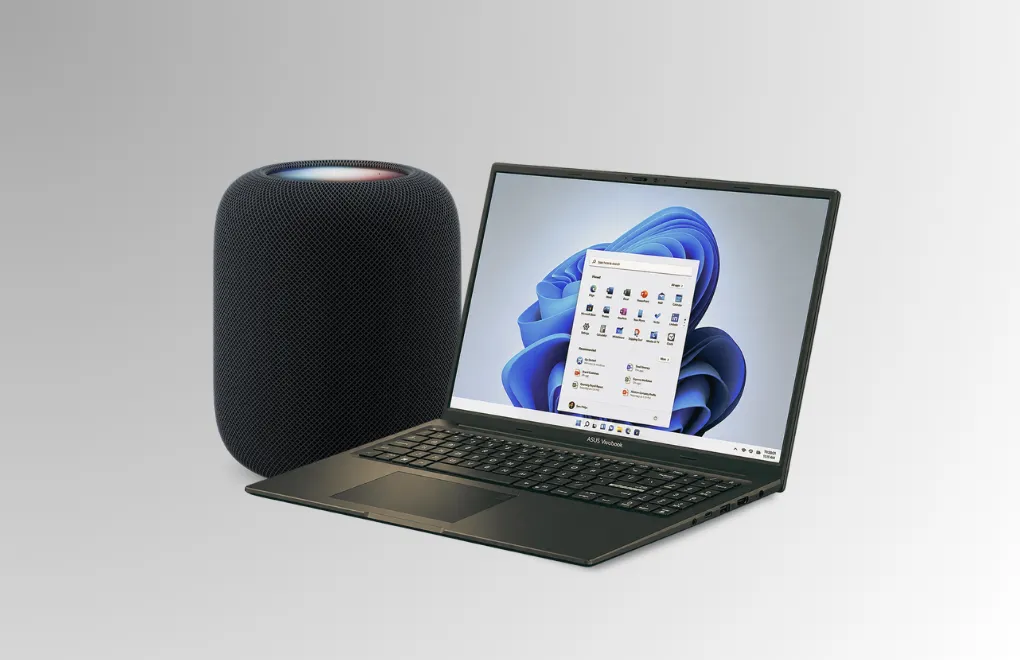
If you’re pairing a speaker with a Windows 10 PC, the path is slightly different. Open Settings > Devices > Bluetooth & other devices, click Add Bluetooth or other device, choose Bluetooth, and select your speaker (Microsoft Support page on pairing Bluetooth devices).
Click the speaker icon in the taskbar and choose your Bluetooth speaker from the output list. On Windows 11, you can also go to Settings > System > Sound and select it under Output. Setting it as default means it reconnects as the main output next time.
Macs handle speakers well, and pairing rarely takes more than a few clicks.
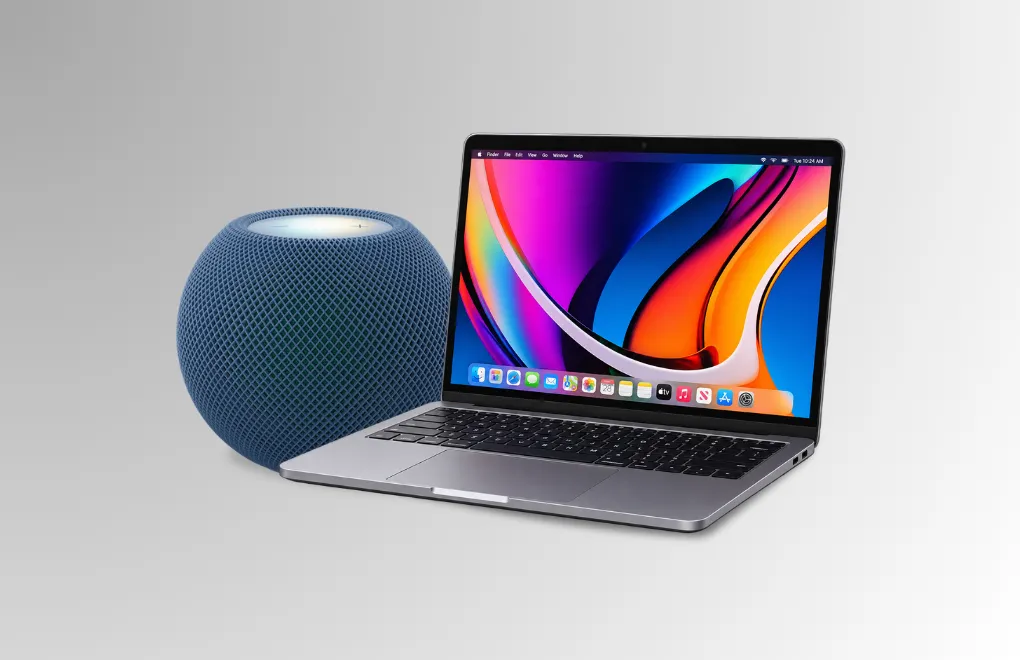
Open System Settings > Bluetooth (System Preferences on older macOS) and make sure the toggle is on. You can also use the Bluetooth icon in the Control Center.
With the speaker in pairing mode, wait for it to appear under Nearby Devices, then click Connect. When I test a speaker on a Mac, I pair it before touching any other setting, because that tells me right away whether the problem lies with the speaker or the Mac.
Go to System Settings > Sound > Output and choose the speaker. A quicker route is Control Center’s Sound menu, where you can switch outputs in one click.
TVs are the most inconsistent category, so check before you buy cables.
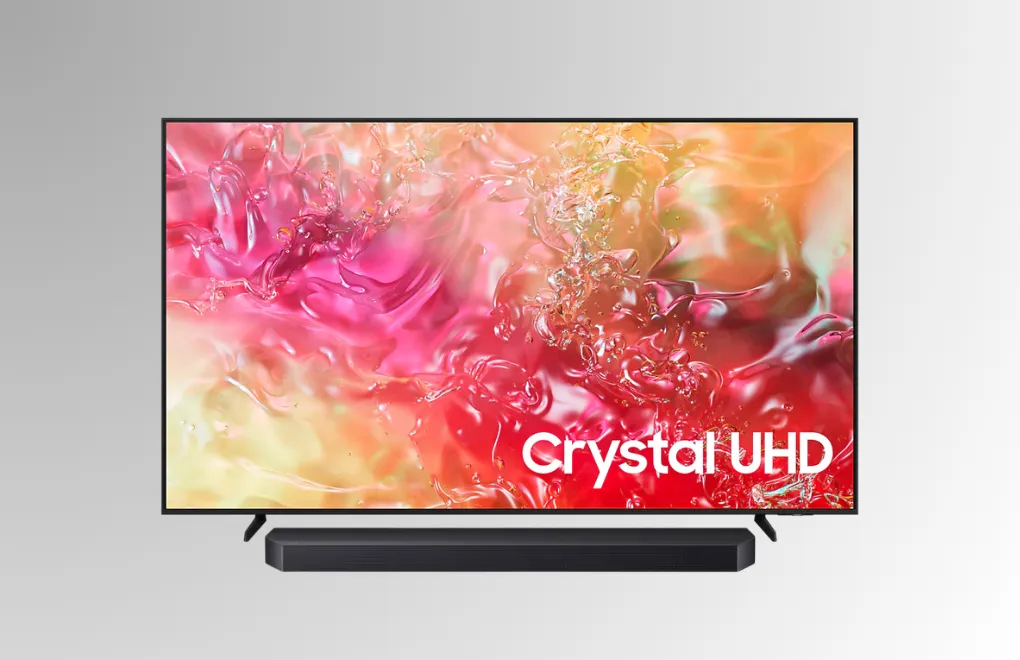
Look in the TV’s sound settings for an entry like “Bluetooth Speaker List” or “Sound Out.” If you can’t find it, check the spec sheet for Bluetooth audio output. Many TVs include Bluetooth only for remotes.
Menu names change by brand and year, but the idea is the same:
Put the speaker in pairing mode first, then select it when it appears.
Then you need a Bluetooth transmitter or another connection method. Don’t buy a speaker for TV use until you’ve checked this, because a speaker that pairs perfectly with your phone may be impossible to use with your TV.
Plug the transmitter into the TV’s optical or 3.5mm headphone output, power it, and pair it with the speaker. For movies, choose a low-latency transmitter and make sure the speaker supports the same low-latency codec. If they don’t, both fall back to a basic codec with noticeable delay.
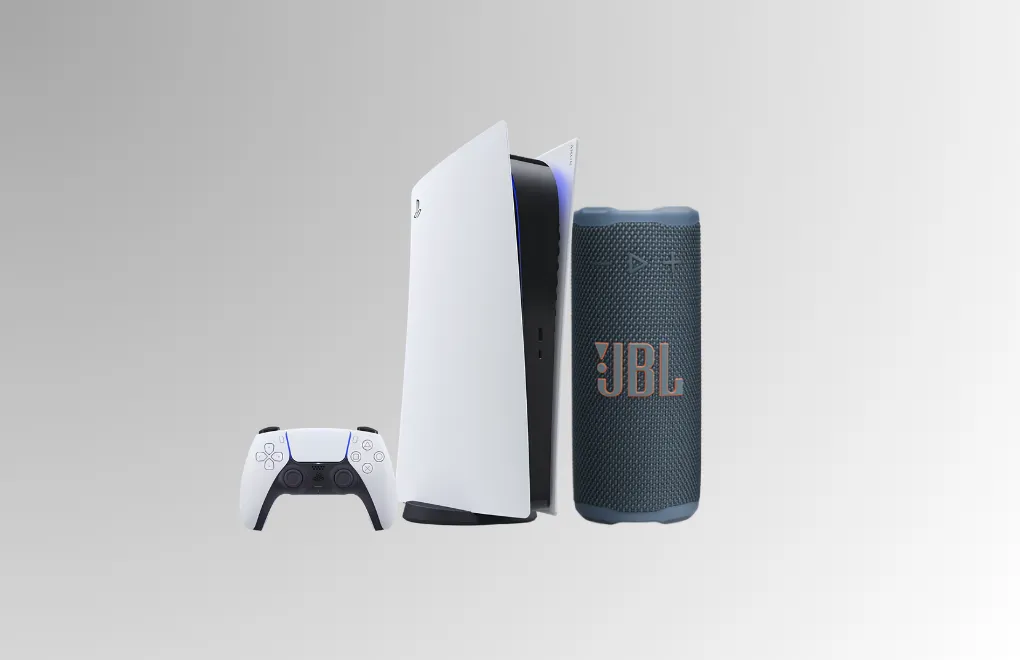
No. The PS5 doesn’t support standard Bluetooth audio devices, which is why a Bluetooth speaker won’t show up when you search for devices. Many players try to connect a speaker to a PS5 without an adapter and hit this wall.
Some USB transmitters work as a USB audio device on PS5, but compatibility varies by model. Check that the transmitter explicitly lists PS5 support. If you connect a Bluetooth speaker to a PS5 with USB or an adapter, set the audio output in Settings > Sound > Audio Output afterward (PlayStation’s official support page on supported audio devices).
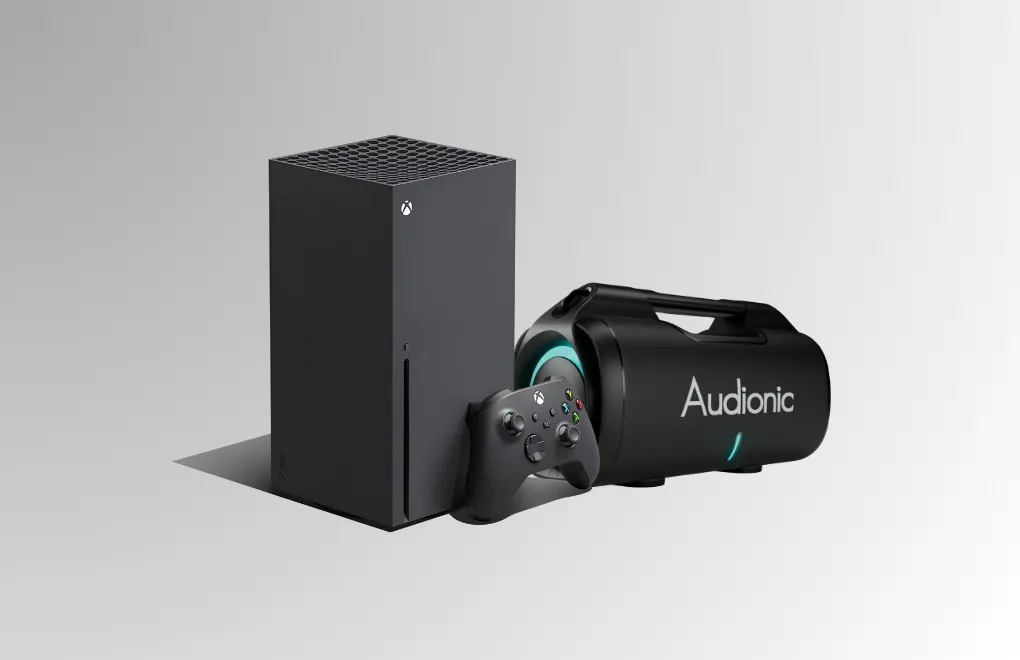
Not in the standard way. Xbox controllers use Bluetooth for input, but the console doesn’t stream audio to ordinary Bluetooth speakers. Getting a speaker to connect to an Xbox takes a workaround.
Xbox’s USB audio support is limited, so a random transmitter may do nothing. Look for products that list Xbox compatibility. Also note that Xbox Series X|S has no optical audio port, so optical transmitters need to connect to the TV instead.
Check the console’s audio output settings, confirm the TV is the active output, and make sure the transmitter is paired to only one device.
The problem: Your device scans but never lists the speaker.
Why it happens: The speaker isn’t in pairing mode, or it’s still attached to another device.
The fix: Hold the Bluetooth button until the light flashes, turn off Bluetooth on nearby phones, and scan again.
The problem: The device says “Connected,” but nothing plays.
Why it happens: Audio is still going to the built-in speakers or another output.
The fix:
The problem: Music cuts out every few minutes.
Why it happens: Distance, obstacles, low battery, or signal interference.
The fix: Move closer, charge the speaker, and clear the path between devices.
The problem: Voices lag behind video.
Why it happens: Bluetooth adds latency, and basic codecs add more.
The fix: Use a low-latency transmitter and a speaker that supports the same codec, or switch to AUX for video and gaming.
The problem: The speaker won’t pair because it’s already linked to a phone.
Why it happens: Many speakers reconnect automatically to the last device they used, and that device may be in the next room.
The fix: Turn off Bluetooth on the other device or disconnect it from the speaker.
The problem: The device keeps spinning at “Connecting.”
Why it happens: A corrupted pairing record.
The fix: Forget the speaker on the device, reset the speaker if it has a reset button, then pair fresh.
Most speakers work reliably up to about 30 feet in open space. Walls cut that sharply.
Fewer active connections means fewer conflicts.
Updates often fix pairing bugs, so check the speaker’s companion app and your device’s system updates.
Use Bluetooth for music, and wired or low-latency options for anything where sound has to match the picture.
Bluetooth shares the 2.4 GHz band with Wi-Fi, and apartment buildings often have dozens of routers in range. In those buildings, I’ve found that dropouts often vanish after moving the router or speaker a few feet, or switching the router’s devices to 5 GHz.
Windows and Mac devices make direct pairing simple, so most people are done in a minute. TVs, PS5, and Xbox often need a transmitter or alternative audio route, and picking the wrong one is how people end up with delay and dropouts.
Matching the connection method to what you’re doing matters more than the speaker itself, and direct Bluetooth isn’t always the best choice for gaming or movies where audio sync counts. If you’re stuck on one specific setup, go back to the table at the top and start with your device.

For most students, the iPad Air (M4) is the better iPad for note-taking. The iPad Pro (M5) is only worth its extra $450 if you…


Be respectful and constructive. Have a question or feedback? We’d love to hear from you. Contact us at contact@thetweaks.com